

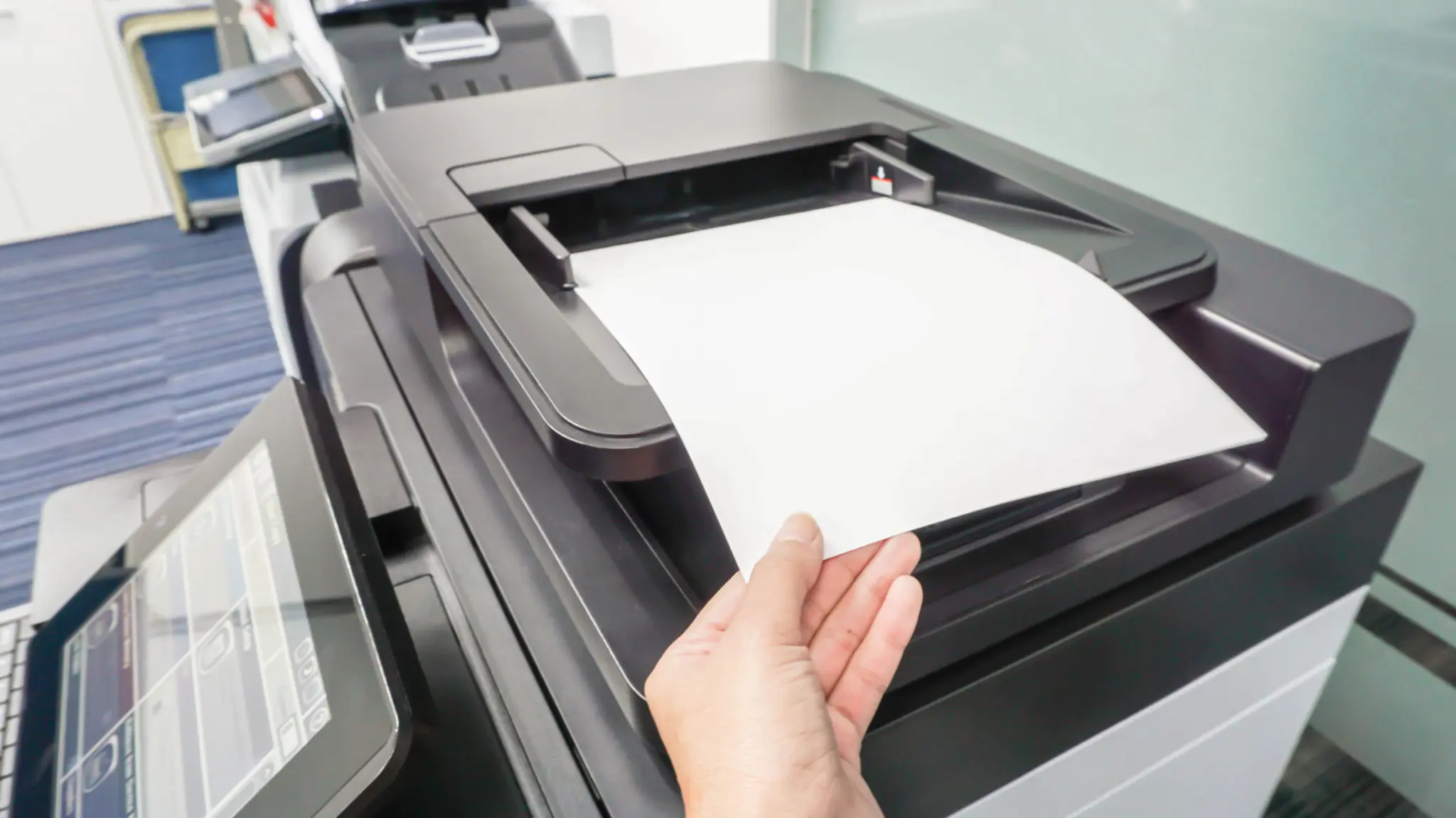
10 Reasons Your Print or Scan Quality Isn’t Up to Par
Published on: November 16, 2026
Faded prints, lines across the page, blurry scans, or colors that just don’t look like the digital copy can be annoying. The good news is that a bad print or scan doesn’t mean your equipment is broken. Sometimes the fix is as simple as cleaning the scanner glass or changing a setting. Other times, poor quality can be a sign that your printer or scanner needs some attention.
Before assuming you need a new device, here are 10 common reasons your print or scan quality may not be up to par and what you can do about them.
1.Your Scanner Glass Needs to Be Cleaned
If you are noticing lines, streaks, spots, or other marks on scanned documents, start with the scanner glass. Dust, fingerprints, correction fluid, and other debris can show up on every page you scan. Even a small mark can create a noticeable line running down the entire document.
If the problem only appears when you use the document feeder, check the narrow strip of glass next to the main scanner glass. This is the area used when pages move through the feeder.
What to try: Clean the scanner glass with a soft, lint free cloth and a cleaner recommended for your device. Some devices even come with a cleaning tool that can be found when opening the top of the scanning glass. (See image below) Then scan the same document again and compare the results.
2.Your Toner or Ink Is Running Low
Faded prints are often one of the first signs that your toner or ink is getting low even if your device hasn’t notified you yet. You may notice uneven colors, missing areas, or certain parts of the page looking lighter than others. Your printer may warn you when supplies are getting low, but print quality can sometimes decline before the cartridge is completely empty.
What to try: Check your printer’s toner or ink levels. If a supply is low, replace it.
3.You’re Using the Wrong Paper
Not all paper is the same, and the paper you use can have a bigger impact on print quality than you might expect. Paper weight, finish, moisture, and overall quality can affect how toner or ink appears on the page. Sometimes the humidity of the room can even create printing problems. If you are using specialty paper, it may also require a different paper setting on your printer. For example, if you are printing on heavy paper but the printer is set for regular copy paper, you may not get the result you expect.
What to try: Make sure the paper you are using is recommended for your printer. Then check that the paper type and size selected on the device match what is loaded in the tray.
4.Your Print Settings Don’t Match What You’re Printing
Before blaming the printer, take a look at your print settings.
Many printers give you options for color, black and white, paper type, paper size, and print quality. Some also have an economy or draft mode designed to use less toner or ink, while sacrificing quality or color. Those settings can be helpful, but they can also affect how the finished document looks.
What to try: Open your print settings before printing and make sure the paper size, paper type, color options, and quality settings match the document you are trying to produce.
5.Your Scan Settings Need to Be Updated
If your scans look blurry, fuzzy, or difficult to read, the scanner itself may not be the problem. Start by checking your scan settings. Resolution is usually measured in DPI, or dots per inch. A higher resolution can capture more detail, but it also creates a larger file. Color settings, file format, and compression can also affect the finished scan. These settings are generally defaulted to a low DPI to limit ink usage and file size. A basic document that you only need to reference may not require the same settings as a detailed photo or a document with very small text.
What to try: Increase the scan resolution or adjust your color and quality settings, then scan the document again. Compare the results before automatically choosing the highest setting available.
6.Your Toner or Ink Cartridge May Be the Problem
A cartridge doesn’t have to be empty to cause poor print quality.
A damaged, defective, incorrectly installed, or the wrong toner or ink cartridge can cause streaks, uneven coverage, missing colors, or other problems. This is where I would start if my print quality suddenly changed after installing a new cartridge.
What to try: Make sure the cartridge is installed correctly and that it is compatible with your printer.
7.The Original Document Is Poor Quality
A scanner can only capture the information available on the original document.
Faded text, wrinkles, stains, small print, light handwriting, or an already blurry image can all carry over into your scanned file. Increasing the scan quality may help in some cases, but it cannot completely restore information that isn’t clear on the original.
What to try: Look closely at the original document and compare it with the scan. If possible, try scanning a clean, high quality document using the same settings. If that scan looks good, the original may be the source of the problem.
8. Your Printer Needs Calibration or Maintenance
Sometimes the printer simply needs a little attention. Incorrect colors, alignment problems, or inconsistent output can be signs that the device needs to be cleaned or maintained. Many printers and MFP devices include built in cleaning or calibration options. The exact process depends on the manufacturer and model. The higher-end devices may require more calibration, compared to a small desktop printer.
What to try: Check your printer’s settings or manufacturer’s instructions for available cleaning and calibration options. If the same problem continues after routine maintenance, it may be time to have the device inspected.
9.The File You’re Printing Is Low-Quality
Sometimes the printer isn’t the problem at all. The file is.
This commonly happens with images downloaded from the internet, screenshots, heavily compressed PDFs, or low-resolution logos. An image can look perfectly fine when viewed small on a computer screen but become blurry or pixelated when printed at a larger size. The printer cannot add detail that isn’t present in the original file, and you may not notice that lack of detail on your device screen.
What to try: Print a different, high quality document or image. If the second file prints clearly, take a closer look at the original file before making changes to the printer. If the printer is not the problem, try changing your file quality or save type.
10.It May Be Time to Repair or Replace Your Device
If you have cleaned the scanner glass, checked your supplies, tried different paper, reviewed your settings, and tested another document, but the same quality problem keeps coming back, the issue may be with the equipment itself. Is your device over five years old? That’s old in the print world.
Printers, copiers, and scanners contain parts that wear over time. Depending on the age of the equipment and the repair it needs, servicing the existing device may make sense. In other situations, replacing an older device may be the better long-term choice.
This is where having someone diagnose the actual problem can help. You don’t want to replace a printer because of an easy fix, but you also don’t want to keep putting money into equipment that has reached the end of its useful life.
If you’re looking for a new device or a print partner who can help when issues come up, give MMIT a call. We’ll help you find the right printer, copier, or scanner for your needs and back it up with reliable service and ongoing support. Whether you need better equipment or a better print partner, we’re here to help.
FAQs
Why is my printer printing faded?
Low toner or ink, incorrect print settings, the wrong paper type, or a cartridge problem can all cause faded prints. Start by checking supply levels and your print quality settings.
Why are there lines on my scanned documents?
Lines or streaks on scans are often caused by dust or debris on the scanner glass. If the lines only appear when using the document feeder, clean the narrow strip of glass next to the main scanning area.
Why do my scans look blurry?
Blurry scans can be caused by low resolution or incorrect scan settings. Check the DPI, color, file format, and compression settings before assuming there is a problem with the scanner.
How do I know if my printer needs repair?
If print quality problems continue after cleaning the device, checking supplies, changing paper, and reviewing your settings, the equipment may need maintenance or repair. Older devices with recurring problems may also be worth evaluating for replacement.