

Office Scanner Features You’re Not Using
Published on: July 10, 2026
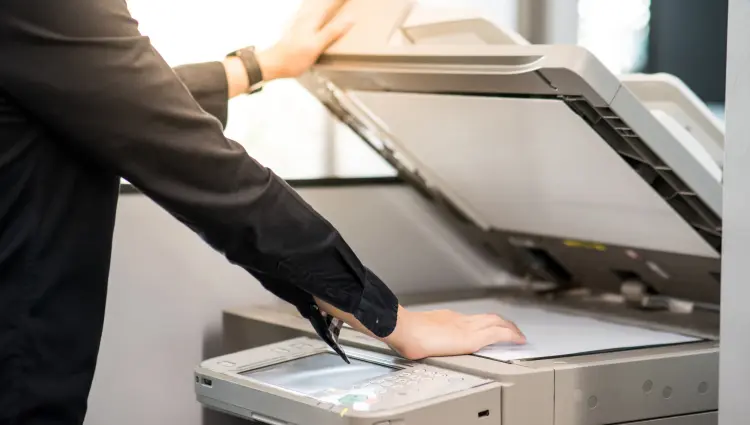
Most businesses use their multifunction printer for the same three tasks every day. They print documents, make copies, and scan files to email.
What many people do not realize is that their Sharp device includes several built in scanning features that can make everyday work much easier. Whether you scan insurance cards at the front desk, organize receipts for accounting, or send contracts to customers, these tools can help your team work faster and spend less time fixing mistakes. The best part is that these features are already included on many Sharp devices. You may simply not know they are there.
Here are five scanning features worth learning.
Card Shot, Scan Both Sides of a Card at Once
What it does
If your office regularly copies driver’s licenses, insurance cards, employee badges, card shot can save a surprising amount of time.
Instead of making two separate copies or scans, Card Shot captures both sides of a small document in a single job. Everything is combined into one file, making it easier to store, email, or print later. This is especially helpful for reception areas, medical offices, HR departments, and anyone who frequently works with identification cards.
Card Shot works well for:
- Driver’s licenses
- Insurance cards
- Employee ID cards
- Business cards
- Receipts
Rather than scanning each side separately, simply flip the card over during the process and let the machine create one finished document.
How to find it
Card Shot is not available from the standard Easy Scan screen. You’ll need to switch into Detail Mode.
- From the Home screen, select Easy Scan.
- Tap the arrow to enter Detail mode.
- Confirm the prompt to exit Easy Mode.
- Select Others.
- Choose Card Shot.
Once the scan is complete, you can save the file as a PDF or another supported format, email it directly, or save it to a USB drive. Many Sharp devices also support OCR with Card Shot, which means names, policy numbers, and other text can remain searchable instead of becoming a simple image.
Quick tip
Need a paper copy instead of a digital file? Start from Easy Copy instead of Easy Scan. The process is nearly identical, but the machine will print the finished copy instead of creating a digital file.
Multi Crop, Scan Several Small Documents at the Same Time
What it does
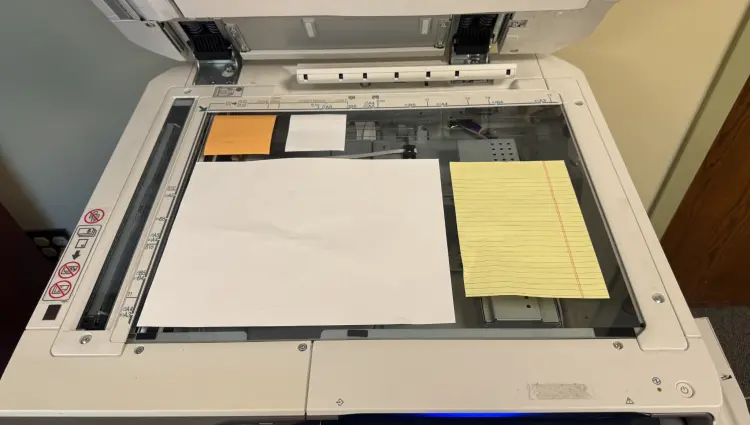
Multi Crop lets you place multiple small documents on the scanner glass during one scan. The Sharp device automatically detects each item, crops them individually, and saves each one as its own file. Instead of scanning five receipts one after another, you can scan all five at the same time. This feature works well for offices that regularly process receipts, expensing your trip, photos, or other small documents.
When to use it
Multi Crop is useful whenever you need separate files for several small items. For example, your accounting department might need individual receipt files for expense reports. Your sales team may want to expense all receipts from a trip.. Instead of creating each file one at a time, Multi Crop does the work automatically.
How to find it
- Select Easy Scan.
- Enter Detail mode.
- Confirm the prompt.
- Open Others.
- Select Multi Crop.
One important step is to leave the document feeder open while scanning. Closing the feeder can prevent the scanner from correctly identifying where one document ends and another begins. When the scan finishes, each item is saved as its own PDF file. That means less manual cropping, fewer repeat scans, and much less time spent organizing documents afterward.
Blank Page Skip, Keep Blank Pages Out of Your Files
Anyone who scans large document stacks has probably run into this problem.
Some pages are printed on both sides. Others are only printed on one side. The result is often a PDF filled with blank pages that nobody wants. Blank Page Skip solves that problem automatically.
What it does
Blank Page Skip detects empty pages during a scan or copy job and removes them from the finished document. Instead of deleting blank pages later, the Sharp device simply leaves them out from the beginning. The result is a cleaner document that is easier to read, share, and store.
When to use it
This feature is especially useful when scanning:
- Employee files
- Contracts
- Medical paperwork
- Customer records
- Financial documents
Many of these files contain a mix of single sided and double sided pages. Blank Page Skip keeps the finished document organized without requiring extra editing afterward.
It can also reduce paper waste when making physical copies.
How to find it
- Select Easy Scan or Easy Copy.
- Enter Detail mode.
- Open Others.
- Select Blank Page Skip.
- Once enabled, the machine automatically ignores blank pages throughout the job.
Good to know
Card Shot, Multi Crop, and Blank Page Skip are all located in the same menu. Some of these features cannot be used together. If one option appears unavailable, another feature is likely already turned on. Simply disable the first option before selecting another.
Preview and Edit, Catch Mistakes Before Sending Your Scan
Nothing is more frustrating than emailing a document only to realize a page is upside down or missing. Preview helps prevent that.
What it does
Preview lets you review your document before it is sent or printed. Depending on the mode you are using, you may also be able to edit the document before finishing the job. Catching mistakes at the copier is much faster than rescanning an entire document later.
When to use it
Preview is helpful any time you scan multiple pages. It allows you to confirm that every page was scanned correctly before the file reaches a customer, coworker, or employee. If something looks wrong, you can fix it immediately.
Easy Mode versus Detail Mode
In Easy Mode, Preview lets you review the document before sending it. In Detail Mode, you can do much more.
You can:
- Delete unwanted pages
- Rotate sideways pages
- Change the page order
- Remove duplicate scans
These tools help you create a clean document without needing additional software on your computer.
How to access Preview
Preview is available from both Easy Scan and Easy Copy.
- For basic document review, simply use Preview in Easy Mode.
- For editing options, switch to Detail Mode before starting your scan.
OCR Scanning, Turn Paper Documents Into Searchable Files
Scanning a document creates a digital copy. OCR takes it one step further. Instead of saving your document as a simple image, OCR allows the scanner to recognize the words on the page. That means you can search for text, copy information, and in some cases even edit the document without typing everything again. For businesses that work with paper every day, this can save a significant amount of time.
What it does
When OCR is turned on, the scanner reads the text on each page and converts it into searchable information. The finished file looks the same as a normal scan, but the text can now be searched, selected, and copied. Depending on the file format you choose, the document can also be opened and edited in programs such as Microsoft Word, Excel, or PowerPoint.
When to use it
OCR is useful anytime you may need to find information later. For example, imagine scanning a stack of contracts into a folder. Without OCR, finding a specific agreement usually means opening each PDF until you find the right one. With OCR, you can search for a customer’s name, an address, or a contract number in seconds. It is also helpful when scanning invoices, employee records, reports, meeting notes, or any document that may need to be edited later. Instead of retyping information, you can often work directly from the scanned file.
How to find it
Unlike several of the other features in this article, OCR is available directly from Easy Scan.
- Select Easy Scan.
- Choose where you want to send the file.
- Load your documents.
- Swipe to the second page of scan settings.
- Choose your file format.
- Turn OCR Scanning on.
- Start the scan.
When OCR is enabled, your Sharp device can create searchable PDF files as well as editable Microsoft Office documents, depending on the format you select.
Mixed Size Original, Scan Different Paper Sizes Together
Most offices eventually run into a document that contains more than one paper size. A contract may include a legal size exhibit. An engineering drawing may be attached to a letter sized report. Financial paperwork often includes oversized forms mixed with standard documents. Without the right settings, this usually means creating multiple scan jobs and combining the files afterward. Mixed Size Original eliminates that extra work.
What it does
Mixed Size Original allows you to load documents of different paper sizes into the document feeder and scan them together as one job. Each page keeps its original dimensions, so nothing is stretched, cropped, or reduced to match the rest of the document. Everything is combined into one file while preserving the formatting of each page.
When to use it
This feature is useful anytime a document includes both letter and legal size paper.
Examples include:
- Contracts with legal exhibits
- Loan documents
- Construction paperwork
- Medical records
- Financial files
Instead of separating the pages into multiple scan jobs, you can load everything into the feeder and complete the job in one pass. That saves time and helps keep related documents together.
How to find it
- Select Easy Scan.
- Enter Detail mode.
- Confirm the prompt.
- Select Others.
- Choose Mixed Size Original.
- Load the documents into the document feeder.
Once the scan is complete, every page appears in a single document while keeping its original paper size.
One More Thing
While some of these features may seem like they require several steps, there is an easy solution. Sharp devices allow you to save many of these scanning workflows as an Easy Button.
Once the feature is set up, your team simply taps the Easy Button, and the device automatically applies the correct settings. There is no need to navigate through menus each time you scan. It is a simple way to make frequently used scanning tasks faster and more consistent.
Get More from the Equipment You Already Own
Most businesses only use a small percentage of what their multifunction printer can do. Features like Card Shot, Multi Crop, Blank Page Skip, Preview, OCR, and Mixed Size Original are designed to solve everyday problems that many offices deal with every week. Learning just a few of these tools can reduce manual work, eliminate unnecessary steps, and make scanning much easier for your team.
The best part is that many of these features are probably available on your Sharp device.
If you are unsure which features your model supports, MMIT is happy to help. We can walk you through your Sharp device, answer questions, and help you get more value from the equipment you already own. Give us a call today to get started! (515) 283-0607