

Microsoft 365 Apps Explained: The Questions Every Business Actually Asks
Published on: June 8, 2026 | Updated on: July 21, 2026
Most businesses use four apps from Microsoft 365 every day. Word for documents, Excel for spreadsheets, Outlook for email, and Teams for meetings. That covers maybe twenty percent of what your business’s subscription includes.
If you have Microsoft 365 Business Standard, Premium, or one of the different enterprise plans, you are paying for dozens of applications. Some help your team communicate. Others organize files, build reports, automate tasks, secure devices, or replace tools you might be paying for elsewhere.
This guide walks through each application included with most Microsoft 365 business plans, and what it does. Some of these apps you already know and are very familiar with. While others may actually be new to you and might even be worth adding to your workflow.
What is Included in This Guide
Communication
Files & Collaboration
Productivity
Project and Task Management
Automation and Analytics
Media
Security and Device Management
What Is Microsoft Teams?
Microsoft Teams is the central hub for chat, video meetings, voice calls, and file sharing inside your business. If your team has been using Zoom for meetings and a separate app for messaging, such as Slack, Teams handles both jobs in one place. It also connects directly to the rest of Microsoft 365, so files shared in a Teams channel save automatically to SharePoint or OneDrive, and meetings can be scheduled straight from Outlook.
Most businesses already pay for Teams through their Microsoft 365 subscription. Business Basic, Business Standard, and Business Premium all include the full version at no extra cost. There is also a free version with limited features, but if you have any paid Microsoft 365 plan for business, you already have the complete experience.
Besides the basics, Teams does more than most people realize. You can host webinars, run breakout rooms during meetings, create transcripts of meetings, and bring in apps like Salesforce and Adobe right into your workflow. Many businesses also use Teams Phone to replace traditional desk phones, with calls routing through the Teams app on a computer or mobile device.
A common misunderstanding is that Teams replaces email. It does not. Teams is for quick conversations, working sessions, and meetings. Outlook is still where you should handle email, calendars, and external communication. Most businesses use both together, with Teams for internal chat and Outlook for large internal messages and external communication.
Common Questions About Teams
Is Microsoft Teams free for business? There is a free version, but most business features come with a paid Microsoft 365 plan. If you already have Business Basic or higher, you have the full version.
Do I need to install Teams to join a meeting? No. You can join any Teams meeting from a web browser without downloading anything. Installing the app gives you the full experience with chat, calls, and file access.
What is the difference between Microsoft Teams personal and business? The personal version is meant for family and friend group chats and includes basic video calling. The business version includes work focused features like channels, meeting recordings, phone system integration, and connection to your business email and files.
How is Teams different from Slack? Teams is built into Microsoft 365 and includes video meetings, voice calls, and full Office file collaboration in one app. Slack focuses primarily on messaging and works well as a standalone chat tool, though it needs additional apps to match Teams for meetings and calls.

What Is Microsoft Outlook?
Microsoft Outlook is the email and calendar app for your business. It handles everything you need to communicate with people inside and outside your company, from sending and organizing email to scheduling meetings, managing your address book, and keeping track of tasks. If you have any Microsoft 365 business plan, Outlook comes with it.
Most people think of Outlook as just an email app, but the calendar is where it really earns its place in a business. You can see your whole team’s availability, schedule meetings that automatically create a Teams link, send meeting invites with reminders, and share calendars with coworkers so everyone knows when others are out of office. Outlook also pulls in attachments directly from OneDrive or SharePoint, so you can attach a file from your cloud storage instead of mailing copies back and forth.
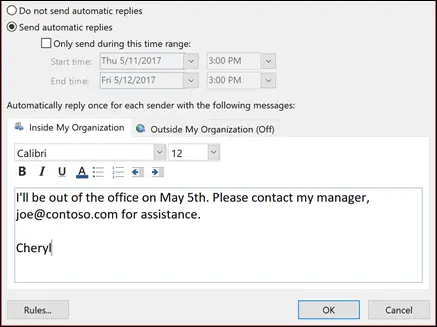
Many businesses ask whether to use Outlook or Gmail. Both work fine for email, but Outlook integrates with the rest of Microsoft 365 in a way Gmail does not. If your team uses Word, Excel, and Teams, Outlook keeps everything connected. Gmail is excellent on its own, but Outlook integrates best with a Microsoft based workplace.
One thing worth knowing: the free Outlook.com email is different from the business version of Outlook included with Microsoft 365. The business version uses your company domain (yourname@yourcompany.com), and includes more advanced features like shared mailboxes and better email security. (Domain refers to everything after the @ in an email address.)
Common Questions About Outlook
Is Microsoft Outlook the same as email? Outlook is the app you use to send and receive email, manage your calendar, and store contacts. The email service itself runs on Microsoft Exchange behind the scenes. Most users do not need to worry about that distinction, but it matters when comparing business plans.
Is Outlook better than Gmail for business? Outlook tends to win for businesses already using Microsoft 365 because everything connects. Calendar, contacts, file storage, and Teams meetings all live in the same ecosystem. Gmail wins for businesses already living in Google Workspace. (Docs, sheets, ETC)
What is the most common problem in Outlook? The most frequent issue is search not finding old emails, and email chains. Microsoft suggests rebuilding your Windows Search catalog. Windows has many articles on this fix which can be found here:
Fix search issues by rebuilding your Instant Search catalog
Is Outlook being discontinued? No. Microsoft is updating Outlook with a new version called “New Outlook,” but the classic version remains available, and Outlook itself is not going away. Some people prefer the “Old Outlook,” but it can be less secure due to less patching and security features.
What Is Microsoft OneDrive?
OneDrive is your personal cloud storage that comes with Microsoft 365. Think of it as a folder on your computer that automatically backs up everything inside it to Microsoft’s servers, so you can open the same files from any device, recover them if your computer crashes, and share them with coworkers without emailing attachments. Every business user gets at least 1 TB of OneDrive storage with most Microsoft 365 plans.
Where OneDrive often confuses people is that it can feel like it has taken over your computer. By default, Windows often sets OneDrive to back up your Desktop, Documents, and Pictures folders automatically. This is actually a good thing because those files become protected, but it can be jarring when files suddenly show up as cloud icons. You can adjust which folders sync at any time from the OneDrive settings.
OneDrive is different from OneDrive for Business, even though both come with most business plans. OneDrive for Business is your personal work storage, where you keep files only you need. SharePoint is where shared team files belong. Files in your OneDrive for Business folder follow you across devices, but they are private to you unless you share them. Files in SharePoint are accessible to everyone on your team automatically.
If you have used Google Drive or Dropbox, OneDrive does the same job. You can collaborate on documents in real time with coworkers, recover older versions of files going back 30 days, restore your entire OneDrive after a ransomware attack, and access files from your phone using the OneDrive app.
Common Questions About OneDrive
Why has OneDrive taken over my computer? Windows often sets OneDrive to back up your Desktop, Documents, and Pictures folders by default. This protects your files but can look like OneDrive is taking over. Nothing has taken over your computer; OneDrive is there to help you avoid losing files. You can turn off folder backup in OneDrive settings if you prefer to manage storage manually.
Is OneDrive free? There is a free version with 5 GB of storage. The full OneDrive with 1 TB of storage comes with most Microsoft 365 business plans at no extra cost.
What happens if I delete OneDrive? Your files stay in the cloud, but they stop syncing to your computer. You can still access them through onedrive.com or the OneDrive mobile app. Removing OneDrive from your computer does not delete the files themselves.
What is the difference between OneDrive and OneDrive for Business? OneDrive (personal) is the free or paid consumer version tied to a personal account. OneDrive for Business is tied to your work account and includes more storage and security features.
SharePoint is Microsoft 365’s platform for storing, sharing, and organizing files across your entire company. While OneDrive holds files that belong to you personally, SharePoint holds files that belong to the business. Think of it as your company’s shared filing cabinet, where teams, departments, or the whole company can access the documents they need without sending files back and forth in email.
SharePoint sits behind a lot of Microsoft 365 features without most people realizing it. Every time a file is shared in a Teams channel, it actually lives in SharePoint. Every internal company portal or news page someone builds is a SharePoint site. Even the document library inside Teams is just a window into SharePoint. So if your business uses Teams, you are already using SharePoint, whether or not anyone calls it that.
SharePoint becomes most valuable when you stop thinking of it as cloud storage and start thinking of it as how your business organizes information. You can build a sales team site with quote templates and pricing sheets, an HR site with employee handbooks and time off forms, or a customer site with shared resources and project files. Permissions are flexible, so leadership can see everything while individual departments only see what is relevant to them.
A common question is whether to save files to OneDrive or SharePoint. The simple rule: if only you need the file, OneDrive. If your team needs the file, SharePoint. This way you do not have to track down a coworker’s personal OneDrive when they go on vacation, and important business files do not get lost when someone leaves the company.
Common Questions About SharePoint
What is the difference between SharePoint and OneDrive? OneDrive is for your personal work files. SharePoint is for shared team files. If only you need a file, save it to OneDrive. If your team or company needs the file, save it to SharePoint.
Is SharePoint free? SharePoint is included with most Microsoft 365 business plans, including Business Basic, Standard, and Premium. There is no separate cost for the SharePoint included in those plans.
Is Microsoft phasing out SharePoint? No. SharePoint is actively developed and continues to power Teams, OneDrive sharing, and Microsoft 365’s collaboration features. Microsoft has invested heavily in SharePoint over the past few years.
Can SharePoint replace a file server? Yes. Many small and midsize businesses have replaced their on premises file server with SharePoint and saved money on hardware, backups, and maintenance in the process. Your files become accessible from anywhere, automatically backed up, and protected by Microsoft’s security infrastructure.
What Is Microsoft Excel?
Excel is probably the most well known application across the Microsoft suite. Excel is a spreadsheet application used for calculations, data analysis, charts, and lists. Most businesses use Excel for budgets, financial models, and customer lists, although the possibilities are endless. If you have any version of Microsoft 365, Excel is included, both as a desktop app and through the browser.
Excel goes much deeper than most people realize. While most people will claim to be proficient in Excel on their resume, few truly reach a place where they are getting the most out of Excel. Beyond simple formulas, it can pull data from outside sources, automate calculations across thousands of rows, and create dashboards with charts and filters. If you believe there needs to be a better way to see or evaluate data or information, Excel can probably do it. Functions like XLOOKUP, SUMIFS, and pivot tables turn Excel from a basic calculator into a serious analysis tool.
A common question is whether Google Sheets can replace Excel. For simple tasks, Google Sheets works well and offers built in sharing through a browser. For heavier work like complex financial models, large datasets, or advanced functions, Excel still pulls ahead. Excel also integrates deeply with other Microsoft 365 apps. You can pull Excel data into Word for reports, embed live charts into PowerPoint, or feed Excel into Power BI for dashboards.
If you have not used Excel beyond basic columns and totals, learning a few features can save hours each week. Microsoft offers free training inside the app under the Help menu, and there are plenty of free guides online for specific business tasks.
Common Questions About Excel
Is Excel difficult to learn? Basic Excel is easy. Most people pick up entering data, simple formulas, and basic formatting in an afternoon. Advanced Excel takes longer because there are so many functions, but you do not need to master everything. Learning the 10 most useful formulas covers most business tasks.
What can Excel do that Google Sheets cannot? Excel handles larger datasets without slowing down, includes advanced functions like dynamic arrays and Power Query, and supports more complex financial modeling. Google Sheets is lighter and better for quick shared spreadsheets, but it lacks some of Excel’s deeper features.
What is the difference between Microsoft Word and Excel? Word is for writing documents like letters, reports, and contracts. Excel is for working with numbers, lists, and calculations in a grid. They often work together, with Excel handling the data and Word formatting the final document.
Can I teach myself Excel? Yes. There are free tutorials on Microsoft’s website, YouTube, and inside Excel itself. Most professionals learn Excel by doing real work in it. Start with the formulas you need for your job, then build from there.
What Is Microsoft Power Automate?
Power Automate is Microsoft’s tool for automating repetitive tasks between apps. If your team copies data from one place to another, pulls the same email results every week, files attachments into specific folders, or notifies someone when a form is submitted, Power Automate can handle those tasks automatically. It runs in the background, freeing your team from clicking through the same steps over and over.
A simple example: every time a customer fills out a contact form on your website, Power Automate can automatically save their information to a spreadsheet, send them a welcome email, post a notification in the sales Teams channel, and create a follow up task in Planner. All of this happens within seconds, with no one having to do anything manually.
Power Automate is included with most Microsoft 365 business plans, though the free version has limits on how often workflows can run and how many you can build. For heavier use, Microsoft sells higher capacity plans. Most small and midsize businesses can do plenty with the included version before they ever need to pay extra.
If you have heard of Zapier or Make, Power Automate is Microsoft’s version of those tools. The advantage of Power Automate is that it connects directly with the rest of Microsoft 365, so workflows involving Outlook, Excel, SharePoint, Teams, and OneDrive are easier to build. Zapier connects to more outside services, but if you are already in the Microsoft suite Power Automate may be a no brainer to save your employees valuable time.
Common Questions About Power Automate
Do I need Power Automate on my computer? Most people do not. Power Automate has both a cloud version that runs through your browser and a desktop version called Power Automate for desktop. If you saw an icon on your computer you did not install, it is likely the desktop version, which is safe to ignore or uninstall if you are not using it.
Is Power Automate free for business? There is a version included with most Microsoft 365 business plans that covers basic automation. For more advanced workflows or higher volume, Microsoft offers paid plans. For most small business needs, the included version is enough to start.
Is Power Automate hard to learn? The interface uses point and click templates with no code required, which makes it very easy to set up. More advanced workflows involve conditions and loops, but Microsoft includes many ready made templates you can adapt without writing anything from scratch.
Can Power Automate replace Zapier? For businesses already using Microsoft 365, yes, in most cases. Power Automate handles connections to Microsoft apps better and is usually included in your subscription. Zapier remains better when your workflows depend heavily on outside services that Microsoft does not connect to.
What Is Microsoft Power BI?
Power BI is Microsoft’s business analytics tool for turning data into reports, dashboards, and visual insights. If your team is staring at spreadsheets trying to figure out what the numbers mean, Power BI takes that same data and turns it into charts, graphs, and live dashboards you can actually understand at a glance. It pulls from Excel, databases, accounting software, CRMs, and just about any other system that holds business data.
Power BI is most useful for businesses that have outgrown Excel for reporting, and are generally larger in size. Excel works great for raw numbers and quick analysis, but it struggles when reports need to update automatically, combine data from multiple systems, or be shared with people who do not know how to use Excel. Power BI solves those problems. You build a report once, connect it to your data sources, and everyone with access sees the latest information every time they open it.
There are two versions of Power BI most businesses encounter. Power BI Desktop is a free Windows app for building reports, and anyone can download it. Power BI Pro is the paid version that lets you share those reports across your organization. Pro licenses are typically around 10 dollars per user per month, and they are often included with Microsoft 365 E5 enterprise plans.
Common Questions About Power BI
Is Power BI free? Power BI Desktop, the report building app, is completely free. To share reports with others in your business, you need Power BI Pro, which is around 10 dollars per user per month, or a Microsoft 365 E5 plan that includes it.
Is Power BI hard to learn? The basics are easier than most people expect. If you understand Excel formulas and pivot tables, you can build basic Power BI reports in an afternoon. Advanced features like DAX formulas and custom data models take longer, but you do not need them for most everyday reports.
Is Power BI the same as Excel? No. Excel is for working with data in spreadsheets. Power BI is visualizing that data and turning it into reports and dashboards. They work together. You can use Excel for the underlying data and Power BI for the visual reporting on top.
Is Power BI worth it for a small business? For small businesses that pull reports from several systems (accounting software, CRM, online sales platforms, and so on) and want everything in one place, it’s worth looking into. Power BI was generally built for larger businesses and may not be worth it from a cost standpoint.
What Is Microsoft Copilot?
Microsoft Copilot is the AI assistant built into Microsoft 365. It works inside the apps you already use every day. Copilot can draft emails in Outlook, summarize long Word documents, and build Excel formulas from plain language descriptions. It also generates PowerPoint slides from notes, recaps Teams meetings you missed, and searches across your business files using natural language. If you have heard of ChatGPT, Copilot is Microsoft’s version, except it has access to your company’s data inside Microsoft 365 so it can answer questions about your actual business, not just general knowledge.
The biggest reason businesses choose Copilot over free AI tools like ChatGPT is data protection. When an employee pastes a customer contract, financial spreadsheet, or sensitive email into a free public AI tool, that content leaves your business and may be reviewed by humans or used to train future AI models. Microsoft 365 Copilot is different. Your data stays inside your Microsoft 365 environment, Microsoft does not use your business information to train its models, and Copilot respects your existing permissions so users can only see content they were already allowed to access. For any business that handles customer information, financial records, healthcare data, or proprietary work, that protection is the actual reason to choose Copilot over letting employees use whatever free AI tool they downloaded last week. If you want to learn more about how Copilot protects your information you can check out our blog “Is your business using AI Safely?“
Common Questions About Microsoft Copilot
Is Microsoft Copilot free? Copilot Chat is included free with any eligible Microsoft 365 business subscription, but it only uses public web data and cannot see your company files. The full Copilot that works inside your business apps and connects to your company data requires a paid Copilot Business or Copilot Enterprise license.
How much does Copilot for business cost? Microsoft 365 Copilot Business is 18 dollars per user per month through June 30, 2026, then 21 dollars per user per month after that. Copilot Enterprise is 30 dollars per user per month. Both are add ons that require an existing Microsoft 365 business or enterprise plan.
Is Copilot included in Microsoft 365 Business Premium? Copilot Chat (the free version) is included. The full paid Copilot Business or Copilot Enterprise license is a separate add on, not bundled with any standard Microsoft 365 plan.
What is the difference between Copilot and ChatGPT? Both use similar underlying AI technology. ChatGPT is a general purpose tool from OpenAI. Copilot is Microsoft’s version, built into Microsoft 365, and it can access your business files, emails, and Teams chats with the right permissions. For business use inside Microsoft 365, Copilot is the more practical choice because it actually knows your data.
What Is Microsoft Defender?
Microsoft Defender is the security platform built into Windows and Microsoft 365. It protects your computers, phones, files, identities, and email from threats like viruses, ransomware, phishing, and account takeovers. Most people first met Defender as the antivirus tool that came preinstalled on Windows, but it has grown into a complete security platform that covers nearly every part of a business.
There are several versions of Defender, and the names can get confusing. The original Windows Defender, now called Microsoft Defender Antivirus, is the free virus protection built into every Windows computer. Microsoft Defender for Business is a paid product included with Microsoft 365 Business Premium that adds advanced threat detection, email protection, ransomware recovery, and centralized monitoring across all your company’s devices. Microsoft Defender for Endpoint is the enterprise version with even deeper protection and is included in Microsoft 365 E5.
A common comparison is Defender versus CrowdStrike. CrowdStrike is a specialist enterprise security platform known for advanced threat hunting, particularly at large companies. Microsoft Defender for Business covers most of what small and midsize businesses actually need, at a lower cost, and integrates directly with the rest of Microsoft 365. For a business with around 200 employees, Defender for Business is almost always the more practical fit. For a Fortune 500 enterprise with a dedicated security team, CrowdStrike may make more sense.
Common Questions About Defender
Is Microsoft Defender free? The basic version, Microsoft Defender Antivirus, is free and built into Windows. Microsoft Defender for Business is a paid product included with Microsoft 365 Business Premium. The free version is good. The paid version is significantly better for business use.
Is Windows Defender enough antivirus for a business? For a single user with light needs, yes, in most cases. For a business with multiple employees, customer data, or financial records, you should upgrade to Defender for Business or another business grade security platform. The free version protects each device individually but does not give you the company wide visibility you need.
What is the difference between Microsoft Defender and Windows Defender? Windows Defender was the old name for the free antivirus tool built into Windows. Microsoft Defender is the new umbrella brand covering that same antivirus, plus the paid Defender for Business, Defender for Endpoint, and Defender for Office 365 products. The naming was simplified a few years ago, but you will still see both names used online.
Does Microsoft Defender protect against ransomware? Microsoft Defender Antivirus offers basic ransomware protection. Defender for Business adds much stronger protection, including ransomware specific monitoring, automatic file recovery for protected folders, and tools that can stop a ransomware attack as it happens. For businesses with valuable data, the paid version is worth it.
What Is Microsoft Intune?
Microsoft Intune is the device and app management platform built into Microsoft 365. It lets your IT provider configure, secure, monitor, and update every laptop, phone, and tablet your team uses for work, all from one central place. If someone loses a phone, Intune can wipe it remotely. If a laptop needs a security setting changed, Intune can push the change to every device at once. If you are not an IT director this section will not make as much sense, and probably is not too important for your position, but it’s still worth knowing.
Intune is included in Microsoft 365 Business Premium and the Microsoft 365 E3 and E5 enterprise plans, so most businesses that have one of those plans already have it. It works on Windows, Mac, iPhone, iPad, and Android, which is part of what makes it so useful. Your IT provider can manage a Windows laptop in your office, an iPhone in the field, and a Mac at home using the same tools.
For a business owner, the value of Intune comes down to consistency and protection. With Intune, your IT provider can apply policies that require strong passwords, encrypt a hard drive, install required apps, block risky settings, and even prevent business files from being copied to personal accounts. If a device is lost or an employee leaves, business data can be removed without touching personal photos or messages.
Intune does come with concerns employees often raise. Many people worry their employer can see browsing history, personal messages, or location through Intune on a personal device. In practice, Intune is designed to manage business data, not spy on personal use. On a personal phone enrolled in Intune, your employer can see what apps and policies are installed, the device model, and whether it meets security requirements. They cannot see your texts, your photos, your browsing history, or your private apps.
Common Questions About Intune
What can my employer see through Intune? Your employer can see the device model and operating system, what apps are installed through the company, whether the device meets security requirements, and approximate location if you allow it. They cannot see your personal texts, photos, browsing history, calls, or private apps.
Is Microsoft Intune included in Business Premium? Yes. Microsoft 365 Business Premium includes Intune for managing devices. Lower business plans (Business Basic and Business Standard) do not include it, though it can be added on as a separate license.
Why is Intune so complicated? Intune has a wide range of features for managing all kinds of devices, which makes the admin side complex. For most small and midsize businesses, only a small portion of those features are needed. Your IT provider sets it up once, applies the right policies, and most users never see the admin side at all.
What Is Microsoft Word?
Microsoft Word is another commonly known application that is used for creating and editing written documents. Letters, reports, contracts, proposals, employee handbooks, and just about any other business document gets written in Word. It is the most widely used word processor in business and comes with every Microsoft 365 plan.
Most people use Word for basic typing and formatting, but it does much more. You can build templates for common documents your business sends out, track changes when multiple people edit a document, add signatures, create labels, generate a table of contents automatically, and lock parts of a document so coworkers can fill in only the sections you want them to. Word also integrates with the rest of Microsoft 365, so you can pull data from Excel, save directly to SharePoint or OneDrive, and collaborate with coworkers in real time.
A common question is whether Word can be replaced by Google Docs. For simple documents, yes. For documents with complex formatting or or mail merges, Word still pulls ahead. Most businesses also stick with Word because it is what their clients, partners, and lawyers expect.
What Is Microsoft Powerpoint?
Microsoft PowerPoint has been the standard application for building slide presentations for decades. Sales pitches, training decks, board updates, conference talks, and internal meetings all run on PowerPoint slides in most businesses. It is included with every Microsoft 365 plan and is the format clients, partners, and prospects expect when you send over a presentation.
Beyond basic slides, PowerPoint includes features most users never explore. You can record narrated presentations that play like videos, add live transcription during a meeting, use the Designer feature to automatically lay out professional slides from rough content, and pull in live data from Excel that updates whenever the spreadsheet changes. PowerPoint also supports collaboration, so multiple people can work on a deck at the same time, and version history lets you roll back to earlier versions if needed, or if something gets deleted.
Many ask whether Google Slides or Canva can replace PowerPoint. For simple presentations and casual sharing, yes. For polished business presentations that need precise formatting, charts pulled from Excel, or compatibility with what your clients use, PowerPoint remains the standard. Most professionals still expect a PowerPoint file when you say “send me the slide deck.”
What Is Microsoft OneNote?
Microsoft OneNote is a digital notebook for capturing notes, ideas, meeting recaps, research, sketches, and anything else you might otherwise scribble on paper. Notes sync automatically across your computer, phone, and tablet, so you can start writing on a laptop and finish on a phone without losing anything.
OneNote works well for businesses that want a flexible place for unstructured information. Think meeting notes, training documentation, project research, sales call notes, customer follow ups, or onboarding guides. OneNote is a fantastic feature for anyone working from multiple locations on different devices, especially for simple notes that do not require security. OneNote is not the most complex or important Microsoft suite application, but can be useful when used correctly.
What Is Microsoft Loop?
Microsoft Loop is one of the newer additions to Microsoft 365, built for collaborative work that does not fit neatly into a document, spreadsheet, or chat. A Loop page is a flexible workspace where teams can plan projects, brainstorm ideas, capture notes, and assign tasks, with content that updates live across every place it appears.
The key idea behind Loop is portable components. You can build a task list, a poll, or a paragraph in one Loop page, then paste it into a Teams chat, an Outlook email, or a Word document. Anyone editing it from any location is updating the same content. No more chasing the latest version across five different threads. Loop is a gamechanger for remote work. All the collaboration that can be done in a conference room can be done on a Loop page.
Loop is included with most Microsoft 365 business plans and is most useful for teams working on projects that involve a lot of brainstorming, status updates, or shared planning. If your team currently keeps project notes in five different places, Loop is worth exploring. It is newer, so the feature set is still growing, but Microsoft is investing heavily in it.
What Is Microsoft Lists?
Microsoft Lists is a simple tool for tracking information in customizable rows and columns. Think of it as a smarter version of an Excel spreadsheet, with built in features for tracking issues, inventory, contacts, projects, events, or anything else you might otherwise manage in a basic database.
Lists works well for situations where Excel feels too freeform and a full app like a CRM feels like overkill. Common business uses include tracking asset inventory, logging customer issues, managing a content calendar, or coordinating event details across a team. Each list can have its own columns, formatting rules, and views, and multiple people can update it at the same time without overwriting each other.
A common question is whether Lists replaces Excel or SharePoint. It does neither. Excel is still better for calculations and analysis. SharePoint document libraries are still where files live. Lists is purpose built for structured tracking, sitting in between those two tools. It comes with most Microsoft 365 business plans and shows up inside Teams, SharePoint, and the standalone Lists app.
What Is Microsoft Forms?
Microsoft Forms is a tool for creating online surveys, quizzes, and forms. Whether you need to collect customer feedback, gather employee responses, run a quiz, or just put together a quick sign-up form, Forms is the place to start.
Most businesses use Forms for things like new client signups, event registration, satisfaction surveys, or even RSVPs. Responses flow into a real time results view, and you can export them to Excel for deeper analysis. It is included with most Microsoft 365 business plans at no extra cost.
A common comparison is Forms versus Google Forms. Both are free with their respective subscriptions and cover similar use cases. Forms integrates better with Excel, Teams, and the rest of Microsoft 365, while Google Forms is the choice if your business runs on Google Workspace. For Microsoft 365 customers, Forms is usually the natural pick because everything connects.
What Is Microsoft Planner?
Microsoft Planner is a visual task management app for teams. If your business uses sticky notes, whiteboards, or simple spreadsheets to track who is doing what, Planner organizes that work into digital boards anyone on your team can update. Each task gets a card with assignments, due dates, checklists, and comments, so you can visually see who is busy and what is falling behind.
Planner works well for everyday project tracking like sales pipelines, marketing campaigns, onboarding new employees, or department task lists. It is included with most Microsoft 365 business plans and lives inside Teams, so most teams already have access to it without realizing. One thing some people have noticed is that most of the capabilities of Planner can be found in SharePoint if you already have a team set up.
What Is Microsoft Bookings?
Microsoft Bookings is an online scheduling tool that lets clients book appointments with your business automatically. Instead of going back and forth in email to find a time, you share a Bookings link, your customer picks an available slot, and the appointment lands on your calendar with all the details filled in.
Bookings works well for any business that takes appointments. Common examples include consultations, service calls, repair scheduling, recruiting interviews, and team meetings with outside vendors. You can publish multiple appointment types with different durations, set staff availability, send automatic confirmation emails and reminders, and even collect payment information for paid sessions.
If you have used Calendly, Bookings does the same job and is included with most Microsoft 365 business plans at no extra cost. The advantage is that it pulls availability directly from your Outlook calendar, so customers cannot book over personal commitments, internal meetings, or time blocks you have already set.
What Is Microsoft Stream?
Microsoft Stream is the video platform built into Microsoft 365. It is where Teams meeting recordings, training videos, company announcements, and other business video content live. Think of it as your business’s private version of YouTube, with full access controls so videos can only be seen by the people you choose.
Stream is most commonly used to store meeting recordings automatically. When you record a Teams meeting, the file saves to Stream by default, where it can be played back, shared with people who missed it, or searched by transcribed words. Beyond meetings, businesses also use Stream for training libraries, internal video announcements and tutorial videos that new employees can reference during onboarding.
Stream is included with most Microsoft 365 business plans. The version included today is technically called Stream on SharePoint, which replaced an older version called Stream Classic that Microsoft retired in 2024.
What Is Microsoft Viva Engage?
Microsoft Viva Engage is the company wide social platform built into Microsoft 365. It is designed for organization wide conversations, announcements, communities, and recognition, sitting somewhere between an internal social network and a company newsletter.
Engage works best in larger businesses where employees do not all know each other and need a place to share updates, ask questions, or celebrate wins across departments. If you have heard of Yammer, Viva Engage is the rebranded and updated version of that platform. Most businesses with fewer than 50 employees rarely use it because Teams chat already covers their needs. For larger organizations with multiple offices or departments, Engage helps connect employees who do not interact day to day, and want to go beyond email. It is included with most Microsoft 365 business plans.
What Is Microsoft Whiteboard?
Microsoft Whiteboard is a digital canvas for sketching ideas, brainstorming, and visual collaboration. It works on a computer, tablet, or touchscreen and lets multiple people draw, type, paste images, and move things around together in real time. Think of it as the digital version of a conference room whiteboard.
Whiteboard works well during Teams meetings, especially for brainstorming sessions, project planning, training exercises, team project ideating or workshops where ideas need to be sketched or grouped visually. It is included with Microsoft 365 and integrates directly with Teams, so you can launch a Whiteboard inside any meeting. If your team rarely runs creative or visual sessions, Whiteboard is probably one of those apps you have but do not need. It does not hurt to have it installed.

What Is Microsoft Clipchamp?
Microsoft Clipchamp is a video editor built into Microsoft 365. It is designed for quick, easy video creation without needing professional tools like Adobe Premiere. Drag and drop clips onto a timeline, add text and music, trim sections, and export the finished video. It runs in a web browser or as a Windows app.
Clipchamp works well for businesses that need to create simple videos like social media posts, training clips, customer testimonials, internal announcements, or product demos. The free version covers most basic needs, with paid tiers adding stock footage, premium music, and higher export quality. If you have seen Clipchamp installed on a new Windows computer and wondered what it is, that is why. It is safe to ignore or uninstall if you do not need it.
What Is Microsoft Sway?
Microsoft Sway is a web based presentation and storytelling tool. It is designed for quick, visually polished documents that scroll smoothly like a webpage, rather than the slide by slide format of PowerPoint. Sway works well for newsletters, interactive reports, training materials, and online portfolios.
If you have heard rumors that Sway is being discontinued, those are partly true. Microsoft has slowed development on Sway and removed it from some Microsoft 365 plans. It still works for businesses that have used it for years, but Microsoft has shifted focus toward Loop and updated SharePoint pages for similar use cases. For new content, most businesses are better off using one of those tools instead. If you have existing Sway content that works for your team, you can keep using it for now.
Bring It All Together
That was a lot. If you read every section, congratulations, you now know more about Microsoft 365 than most IT managers. If you scrolled to the bottom, that works too. The point of this guide was never to make you an expert on all 22 applications. It was to show you that Microsoft 365 includes far more than Word, Excel, Outlook, and Teams, and that some of the tools your business already pays for might be replacing software you currently buy separately.
The pattern we see most often at MMIT is businesses paying for Microsoft 365 Business Standard or Premium, then also paying for similar to or exactly the same as another application. A quick review can often uncover thousands of dollars in overlapping software your team already has access to.
If you are not sure which tools your current Microsoft 365 plan includes, or whether you are on the right plan for what your business actually does, our team is happy to take a look. We help businesses across the Des Moines metro and across Iowa get more out of the technology they already pay for. No pressure, just a clearer picture of what you have and what would actually help your team work better.